Complete or correct a flight
Fill in what the tracking can't know — crew, launch, task, who pays — and fix mistakes before approval.
The tracking knows the aircraft and the times. It doesn’t know who flew, how the glider launched, what the flight was for, or who pays. Somebody — usually the pilot, or the person keeping the flight log at the field — fills that in. Until a flight is approved, any member can complete or correct it.
Find the flights that need you
In the Flight Log choose the quick filter Needs completion. Each row names what is missing, for example Missing: pilot, start type.
Open the flight
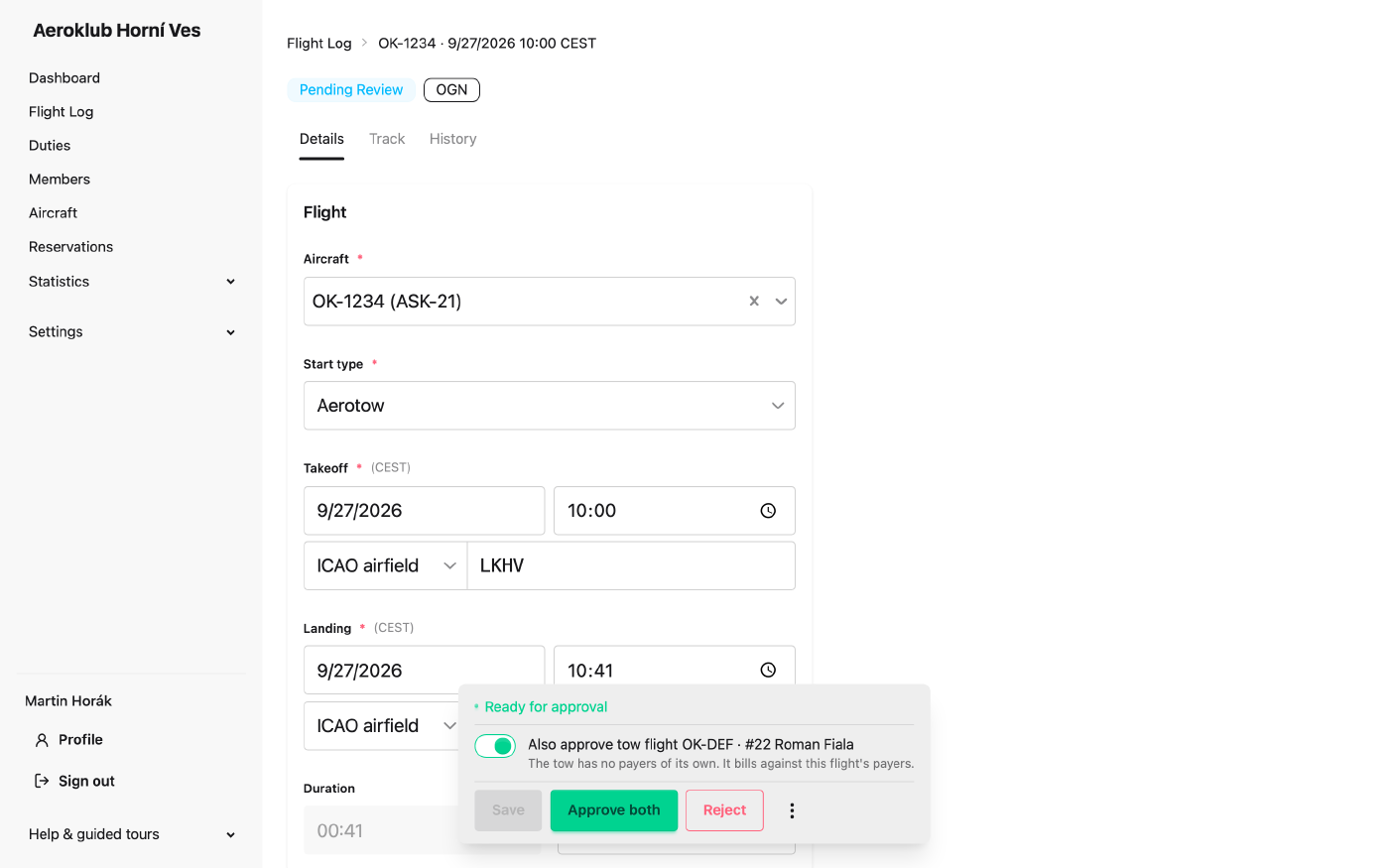
Click the row. A flight that is not yet approved opens as an editable form, titled by its aircraft and takeoff (OK-1234 · 9/27/2026 10:00 CEST), with three tabs:
- Details — the form itself.
- Track — the flight’s path on a map and its altitude graph, when the aircraft was tracked. Useful to check the times or to see whether this really was your flight.
- History — every change made to the flight, by whom and when.
Fill in the missing fields
Work through the form top to bottom — it is the same form as Log a flight: Start type, the places, crew (and Instructor flight for training), Cost Sharing, Task and, for an aerotow, the Tow flight link. The fields approval is still waiting for are marked. Tracked flights also show the Number of starts: a winch session of touch-and-goes counts every launch, and each one is billed as a start.
The bar at the bottom of the screen follows you as you scroll. It shows what is still missing (Missing: …), Unsaved changes while you edit, or Ready for approval when the flight is complete, and says why Approve is not available yet. Press Save to keep your changes.
For a glider launched by aerotow, the tow the tracking paired with it is listed first and marked Suggested. Choose it and save — both flights are linked in one step.
Set the landing when the aircraft is down
If a flight shows In Flight or Signal Lost but the aircraft has landed, open it and press the button next to Landing (Set landing to now), or type the time. On a phone the landing button is right on the row of the list.
Correct a mistake
- Wrong pilot or aircraft — change the field and save. If a pilot ends up on two flights at the same time, the app warns and links to the other flight so you can correct that one too. The order doesn’t matter; the conflict only has to be gone before approval.
- Unlikely times (longer than 24 hours, in the future) — you are asked to confirm before saving; see Warnings before saving.
- One flight recorded as two — when radio coverage drops, the tracking can split one flight in two. The flight’s page shows a hint with a link to the other half. Merging them is done by the club’s flight-log administrator.
- Not a flight at all (a false detection, a test) — ask for it to be rejected, or reject it yourself if it is your own flight (see Approve a flight).
After approval
An approved flight is billed, so it is locked. As pilot in command you can still correct your own approved flight with Edit on its page — for example the task, the crew, or how the cost is split. Times and aircraft recorded by the tracking stay locked. Saving re-calculates the charges. Switching on No charge for an approved flight sends it back to review, unbilled, for someone else to approve. For anything else, ask the club’s administrator.