The Flight Log
One list of every flight — detected, typed in, waiting or billed — and how to read it at a glance.
The Flight Log is the club’s single list of flights. A flight stays in it for its whole life: from the moment the tracking sees a takeoff, through completing and approving it, to the billed record. Nothing disappears when it is approved — it only fades into the background.
Where flights come from
- Tracking (OGN/FLARM) — most flights appear by themselves. The receiver sees the takeoff, adds the flight as In Flight, and fills in the landing when the aircraft is back on the ground.
- Flight Track — aircraft with an onboard tracker get precise times from it.
- By hand — anyone can log a flight the tracking missed.
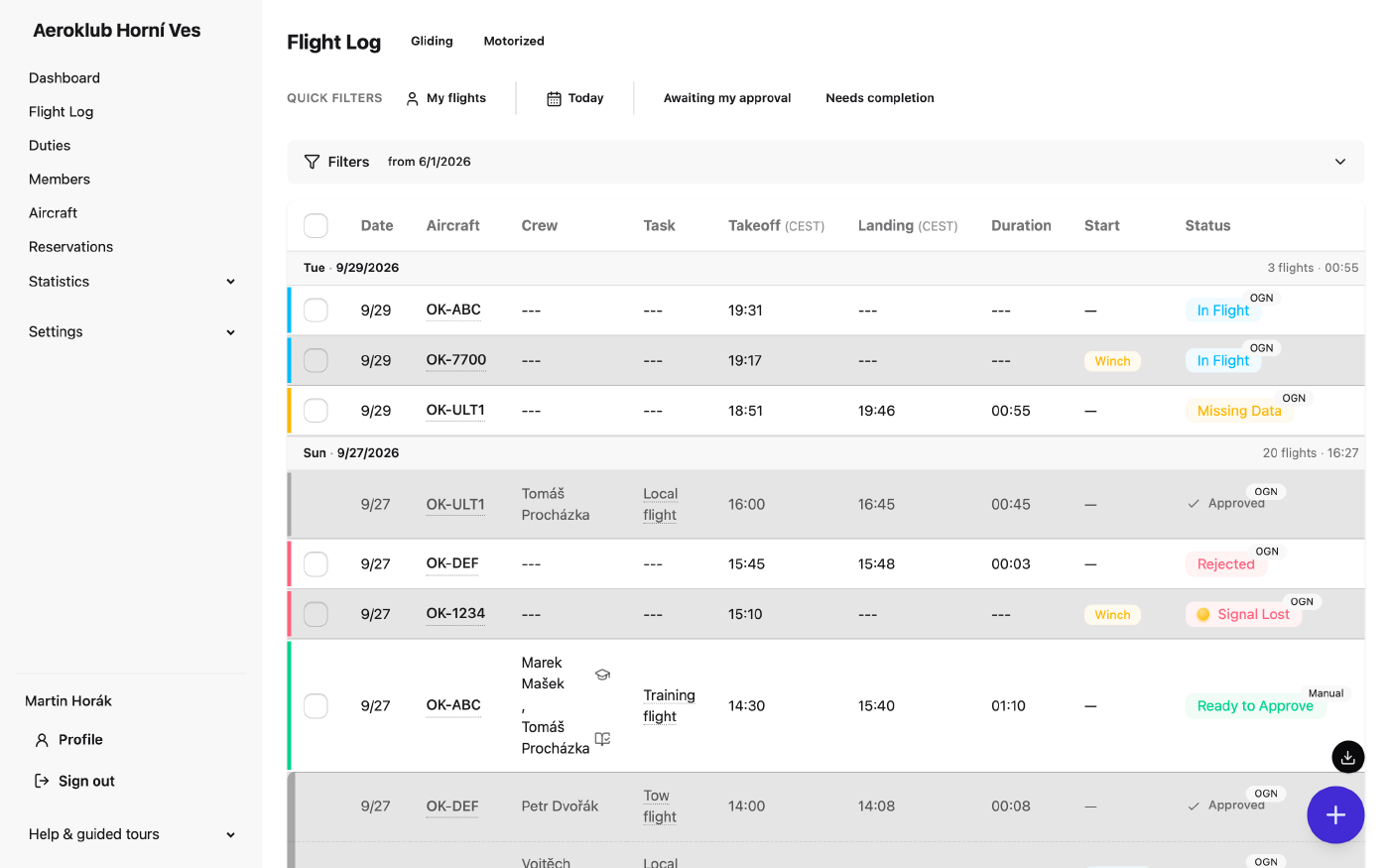
A small badge next to the status says where a flight came from: OGN, FTR, Manual or Ext (imported from another system).
Reading a row
The coloured edge on the left of a row tells you what the flight needs:
| Edge and status | Meaning | What to do |
|---|---|---|
| Blue — In Flight | The aircraft is in the air. | Nothing yet. |
| Amber — Missing Data | Something approval needs is not filled in. The row names it (Missing: pilot). | Complete it. |
| Green — Ready to Approve | Complete, waiting for a confirmation. | Approve it. |
| Red — Signal Lost | The receiver lost the aircraft and never saw the landing. | Add the landing time. |
| Grey, dimmed — Approved ✓ | Confirmed and billed. | Nothing — it is the record. |
| Rejected | Declined, not billed (for example a false detection). | Can be reopened if it was a mistake. |
Other things you will notice:
- Day bands — flights are grouped by day. Each band shows the number of flights and their total time.
- Tow and glider together — an aerotow and the glider it launched are drawn as one rounded block with a shared edge, tow first. They belong together and are billed together.
- Instruction flights carry a small graduation-cap icon next to the instructor.
- Hover a registration to see the aircraft type; hover a task to see what it means.
Click a row to open the flight.
Quick filters
The chips above the list answer the common questions in one click:
- My flights — flights you flew or pay for.
- Today — today’s flights only.
- Awaiting my approval — your flights that are complete and wait for your confirmation. The link in the club’s daily email opens exactly this view.
- Needs completion — flights still missing something. This is about data, not approval: a complete flight waiting for a signature is not in it.
Gliding or motorized
Next to the title you can switch between the two log books a club keeps on paper:
- Gliding — gliders and the tows that launched them (a tow belongs to the gliding it served, even though the tug has an engine).
- Motorized — all other powered flying.
Choose neither to see everything. The list remembers the book and the quick-filter view you used last, on each device.
Filters
Open Filters to narrow the list further: a date range (pick both dates in one calendar), status, aircraft, member, task, category, start type and certificate. Status, task, category, start type and certificate accept several values at once. The collapsed panel summarises what is active; Clear returns to the default view (the last few months).
The filtered address can be bookmarked or shared — it opens the same view for anyone.
On your phone
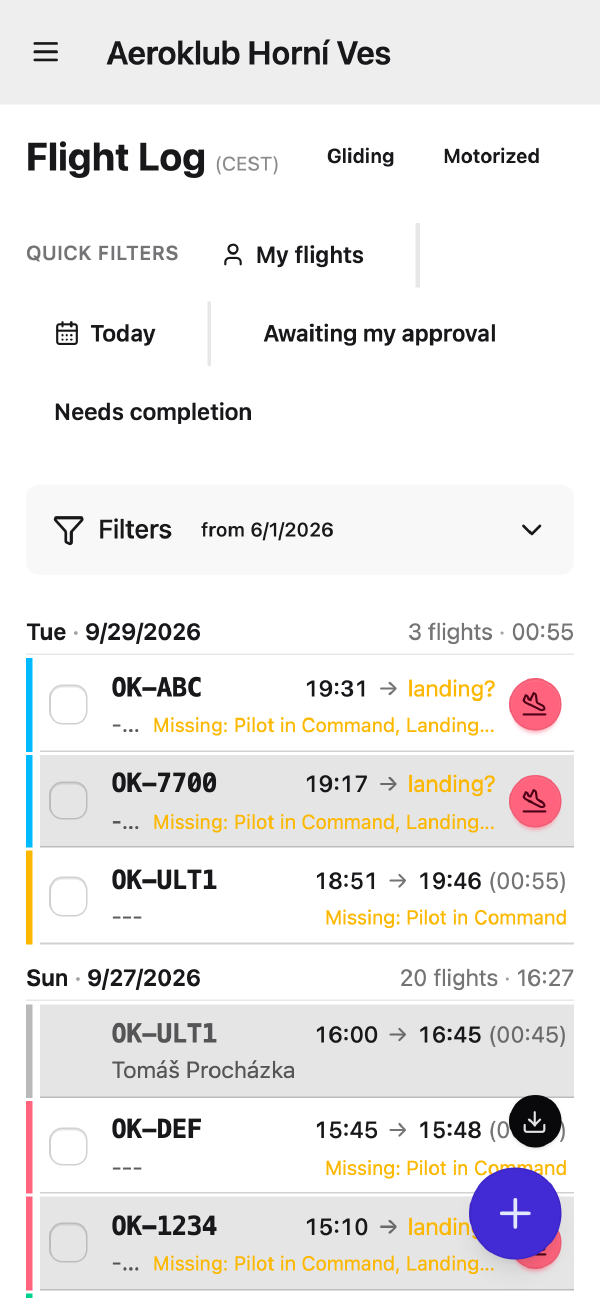
On a phone each flight is a compact two-line row: aircraft, time range, pilot and what is still missing. The quick filters stay at the top while you scroll.
A flight that is in the air, or landed without a landing time, has a landing button right on the row. Press it when the aircraft lands — the landing time is set to now without opening anything.