Install the app and notifications
Put your club's app on your home screen, choose where it opens, and get a notification when something needs you.
What it is
AeroclubHQ installs like an app. Open it from your home screen: full screen, with your club’s name, starting fast. It is the same website — nothing to download from a store.
It needs a connection. Pages, balances and approvals always come from the server, so you never see an old copy. Only the app’s code, styles and icons stay on the device.
Install it
Each club is a separate app, because each club has its own address. Install your club’s address.
- Android (Chrome) — open the club’s address and accept the install offer, or use the browser menu → Install app.
- Computer (Chrome, Edge) — click the install icon in the address bar.
- iPhone and iPad — in Safari, tap Share → Add to Home Screen.
The installed app opens on the dashboard. A link that leaves the club — for example a bank sign-in or a map — opens in your browser.
iPhone and iPad: the installed app has its own sign-in, separate from Safari. Sign in once more after installing. Two-factor “trust this browser” must be given again, too.
Staying signed in
On a phone the system closes background apps often. So in the installed app the sign-in page ticks Remember me by default. In a browser tab it stays unticked — tick it only on your own device.
Start page
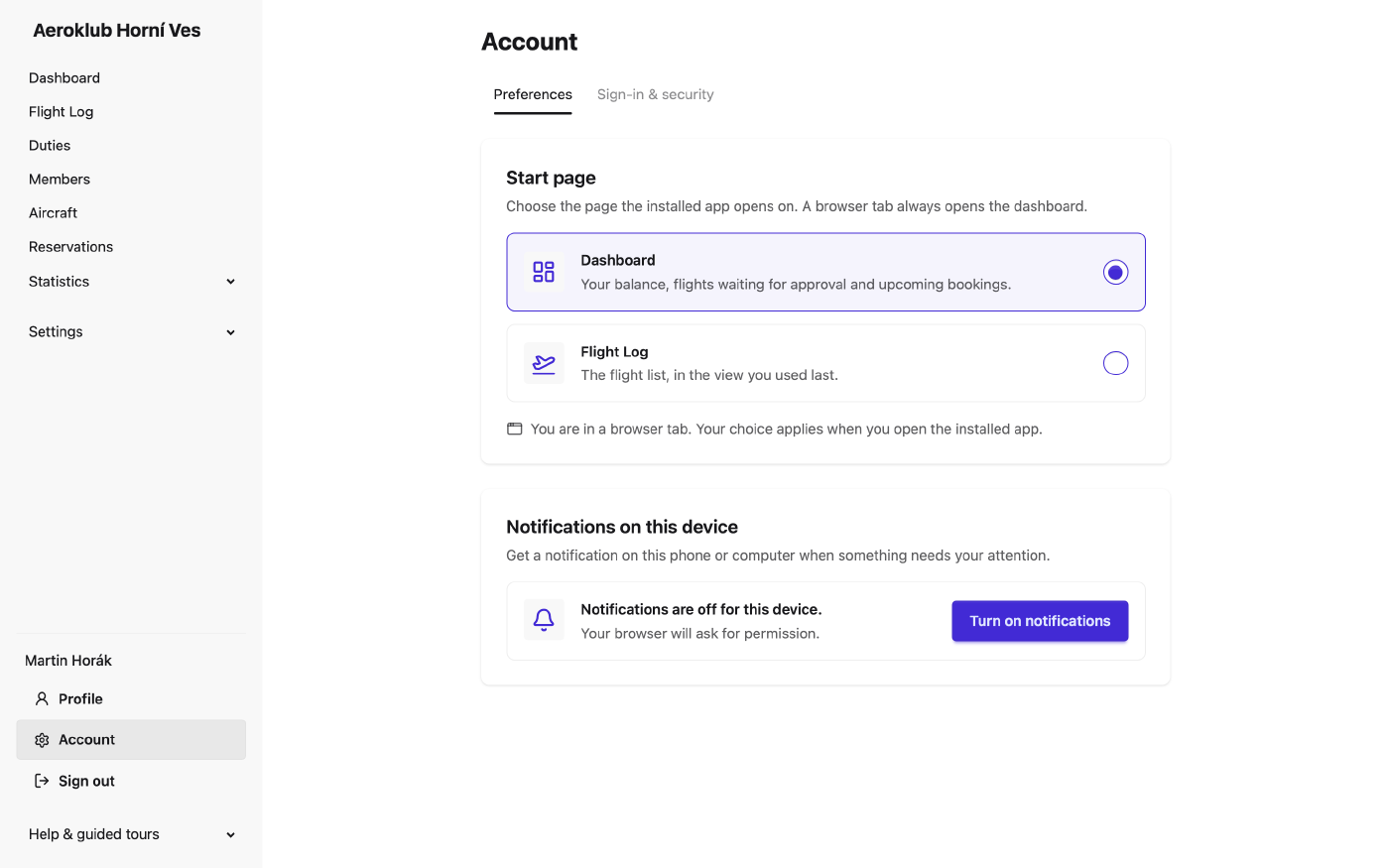
Under your name in the menu choose Preferences. Start page sets where the installed app opens: the dashboard (default) or the flight log, in the view you used last. The flight log choice shows only if you can view flights. A browser tab always opens the dashboard.
An iPhone keeps the address it saw at install: if you installed before choosing, add the app to the Home Screen again.
No connection
With no connection the app shows You are offline with a Retry button. Retry loads the page you asked for. A form sent offline fails with an error message and changes nothing; nothing is saved for later.
New versions
When the club’s app is updated, an open app shows A new version is available with Reload. It never reloads by itself, so a half-filled form is not lost. Ignore the notice and you get the new version the next time you start the app.
Notifications on this device
The app can send a notification to your phone or computer. In Account → Preferences find Notifications on this device and click Turn on notifications. Your browser asks for permission only after you click.
What you get — it is one switch per device, with no choice per kind:
| Notification | When |
|---|---|
| Flights waiting for your approval | Daily at 18:00 club time, only if some wait and you may approve your own flights. One notification lists up to five flights; a tap opens the flight log with exactly those flights. |
| Your balance is below zero | Once, when your balance drops below zero, with the amount. Not repeated until it has recovered and dropped again. A tap opens your payments. |
| Reservation | The day before: Reservation OK-1234 tomorrow 09:00–12:00. Not sent for a cancelled booking or one made less than a day ahead. |
| Duty approved | After your duty is approved, with the credit. Several at once become one notification. |
Good to know:
- Notifications are for members: your account must be linked to your member profile. Otherwise the page says Ask a club admin to link your account to your member profile.
- You can use up to 10 devices. The 11th removes the oldest.
- Signing out turns notifications off on that device, so a shared computer does not keep showing yours.
- Turn off on the same card stops them at once.
- The text is in the club’s language.
If it does not work
- iPhone and iPad — only the installed app can receive notifications. Safari → Share → Add to Home Screen, open the app from the Home Screen, and turn them on there.
- Notifications are blocked for this site — open the site settings in your browser (the icon next to the address), set Notifications to Allow, and reload the page.
- Firefox may allow notifications only until the page closes. Remove the permission in the site settings, press the button again and keep the choice.
- Brave — turn on Use Google services for push messaging first: open
brave://settings/privacyin a new tab, switch it on, restart Brave, come back and press the button again. - Your browser could not reach its push service — a VPN, firewall or company network may block it. Try another network, or restart the browser.
- This browser cannot receive notifications — try a recent Chrome, Edge, Firefox or Safari.
Related
- Getting started — sign in and find your way around.
- Your account — the Account area, balance, and the emails you receive.
- Notifications — everything the club sends, by email and push.