Bank Mapping Rules
Rules that decide what happens to each payment imported from the club's bank account: post it under a transaction type, set a member field, or ignore it.
What it is
When the club’s bank account is connected, every imported movement passes through the Bank mapping rules. A rule looks at the payment — and at the member who paid it — and decides what to do:
- Post as transaction type — book it to the member’s account under a chosen type. Credit types add incoming payments to the balance; debit types deduct outgoing payments (for example a landing fee the club paid for a member at another airfield).
- Set member field — set one yes/no member field (for example Annual fee paid) and book nothing.
- Ignore — the payment is not the club’s concern and is not stored.
Rules are checked from the top of the list down. The first active rule that matches, and whose validity window contains the payment’s booking date, wins. Rules that follow are not checked.
The rules appear in the menu under Settings → Rules while the bank import is on, and on the Bank integration page under Mapping rules. Managing them needs the Manage club settings permission.
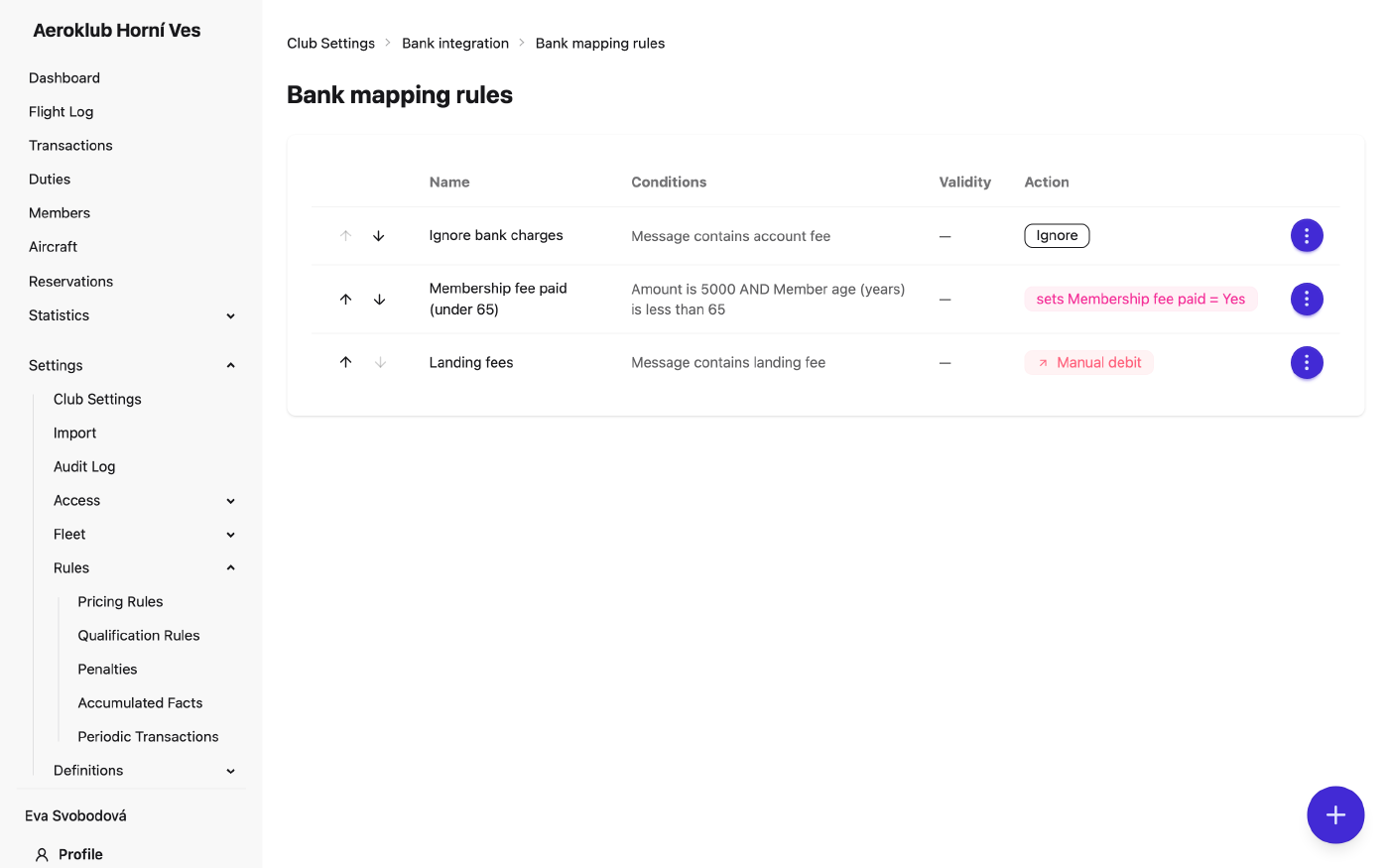
How to use it
- Add a rule — Add rule opens New mapping rule: Rule name, Active, the conditions, an optional Valid from / Valid to, and the Action.
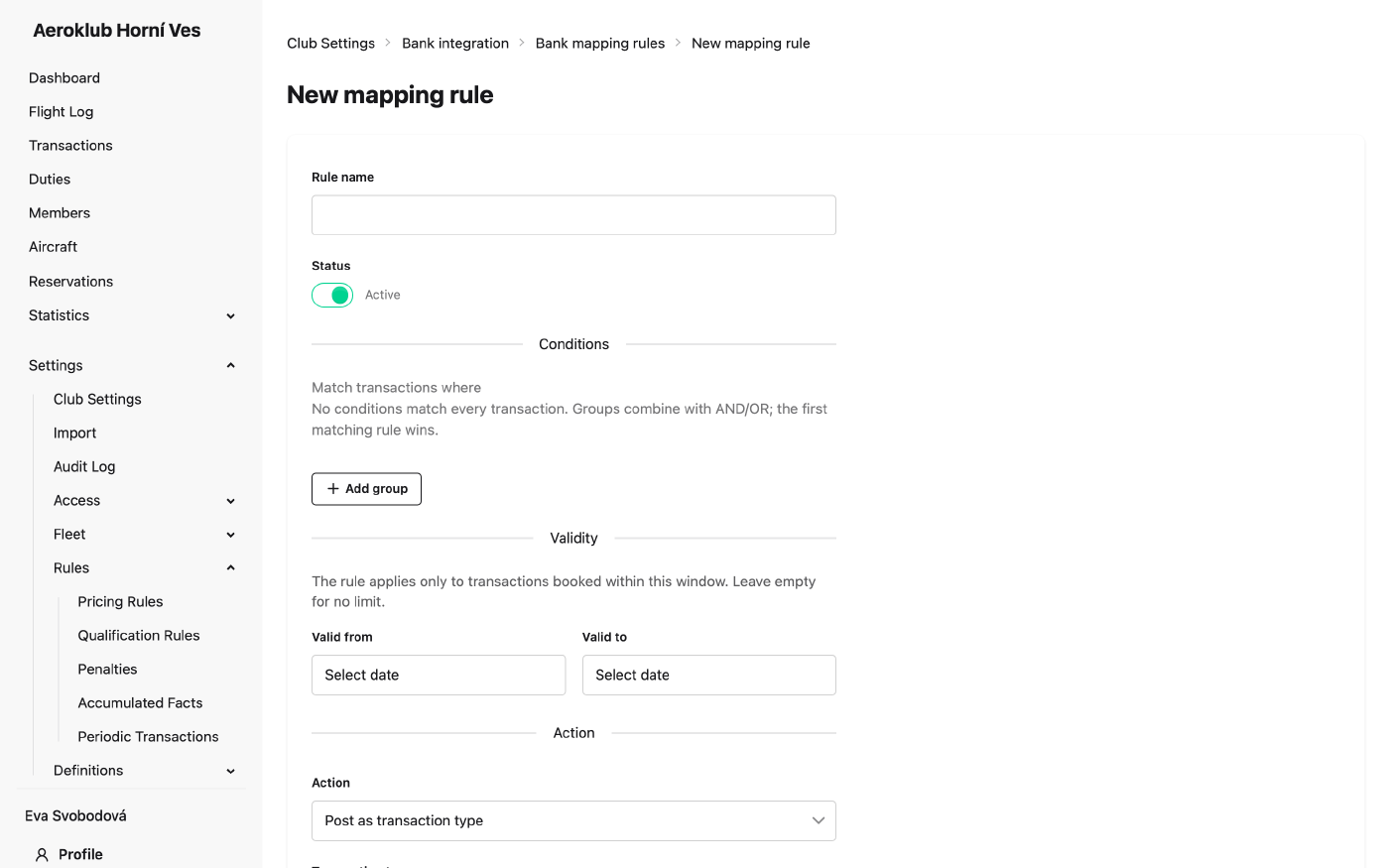
- Write conditions under Match transactions where. No conditions match every transaction.
- Order the rules — Move up / Move down. Put specific rules above general ones.
- Read the list — each row shows its conditions, the action (the type as a coloured Incoming / Outgoing badge, the field it sets, or Ignore) and its validity. An expired rule is marked Expired and no longer applies.
- Edit, Deactivate / Reactivate, Delete — from the row menu. Delete asks for confirmation.
Conditions
The payment:
- Direction — Incoming or Outgoing.
- Amount, Currency.
- Variable symbol, Specific symbol, Constant symbol.
- Counterparty account, Counterparty name, Message, Own note.
Text properties offer is, is not, is one of, contains and matches regex (not case sensitive). An invalid regular expression is refused when you save.
The payer — the member the payment was matched to (by variable symbol or name, as set on the Bank integration page):
- Member age (years) — at the payment’s booking date.
- Membership, Is Active, and the member custom fields.
Payer conditions let a rule check that the amount is what this member owes — for example an annual fee of 5,000 for members under 65 and a lower one above.
The type must match the direction
A credit type can only post an incoming payment, and a debit type an outgoing one. If the conditions fix the direction (for example Direction is Incoming), the form offers only types of that direction. If the two still disagree for a payment, it waits in the review queue instead of being posted with the wrong sign.
What happens to a payment
| Situation | Result |
|---|---|
| An Ignore rule matches | Not stored |
| A Set member field rule matches | The field is set on the payer; nothing is booked or stored |
| A Post rule matches and the member is known | Posted under the rule’s type |
| A Post rule matches but no member is found | Waits in the review queue |
| A Post rule matches a payment in a foreign currency | Waits in the review queue |
| No rule matches, incoming, member found | Posted under the Default transaction type (normally Bank payment) |
| No rule matches and no member is found, or it is outgoing | Not stored |
When the payer can’t be identified, payer conditions can’t be checked. If a Post rule would have matched apart from them, the payment waits for review with that rule attached, so no member payment is lost.
Things to know
- Rule changes don’t re-process stored payments. A payment already posted or waiting keeps its result. A payment that was not stored is checked again by Fetch now (the last three days) or Fetch older period on the Bank integration page.
- A set field is one-way. It is not cleared if the payment is later discarded or corrected; untick it on the member’s page.
- Check a rule before relying on it — Browse bank account on the Bank payments page shows, for each movement, which rule it would match and what would happen.
- A transaction type or a custom field that a bank rule uses can’t be deleted.
Related
- Bank integration — connect the account, set the default type and member matching.
- Bank payments — the review queue and browsing the account.
- Transaction Types — the types rules post under.
- Custom Fields — the yes/no member fields a rule can set.