AI assistant (Claude, ChatGPT)
Connect Claude or ChatGPT to your club: ask in plain words, set the club up, log and approve flights — with your own rights, and never more.
What it is
AeroclubHQ has an MCP server. It lets an AI assistant — Claude or ChatGPT — work with the club for you. You ask in plain words, for example “Which members hold an expired credential?”. The assistant looks things up or prepares changes through AeroclubHQ.
- It acts as you. It has the rights of your role and no more. What your role may not see or do, the assistant cannot either. A change to your role applies at once.
- You choose the access. When you connect, you tick what the assistant may do. Only reading is always on.
- It shows before it saves. Every change has a preview that lists what would change and saves nothing. After saving, the assistant gives a link to the record in the web app.
- Everything is audited. Each change is recorded in the Audit Log under your name, marked via Claude or via ChatGPT.
Anyone who uses the club’s sign-in page can connect an assistant — an administrator, a member of staff or a pilot — except users who only use the member portal and superadmins. What the assistant can do then depends on the user’s role: a pilot’s assistant reads and logs what a pilot may.
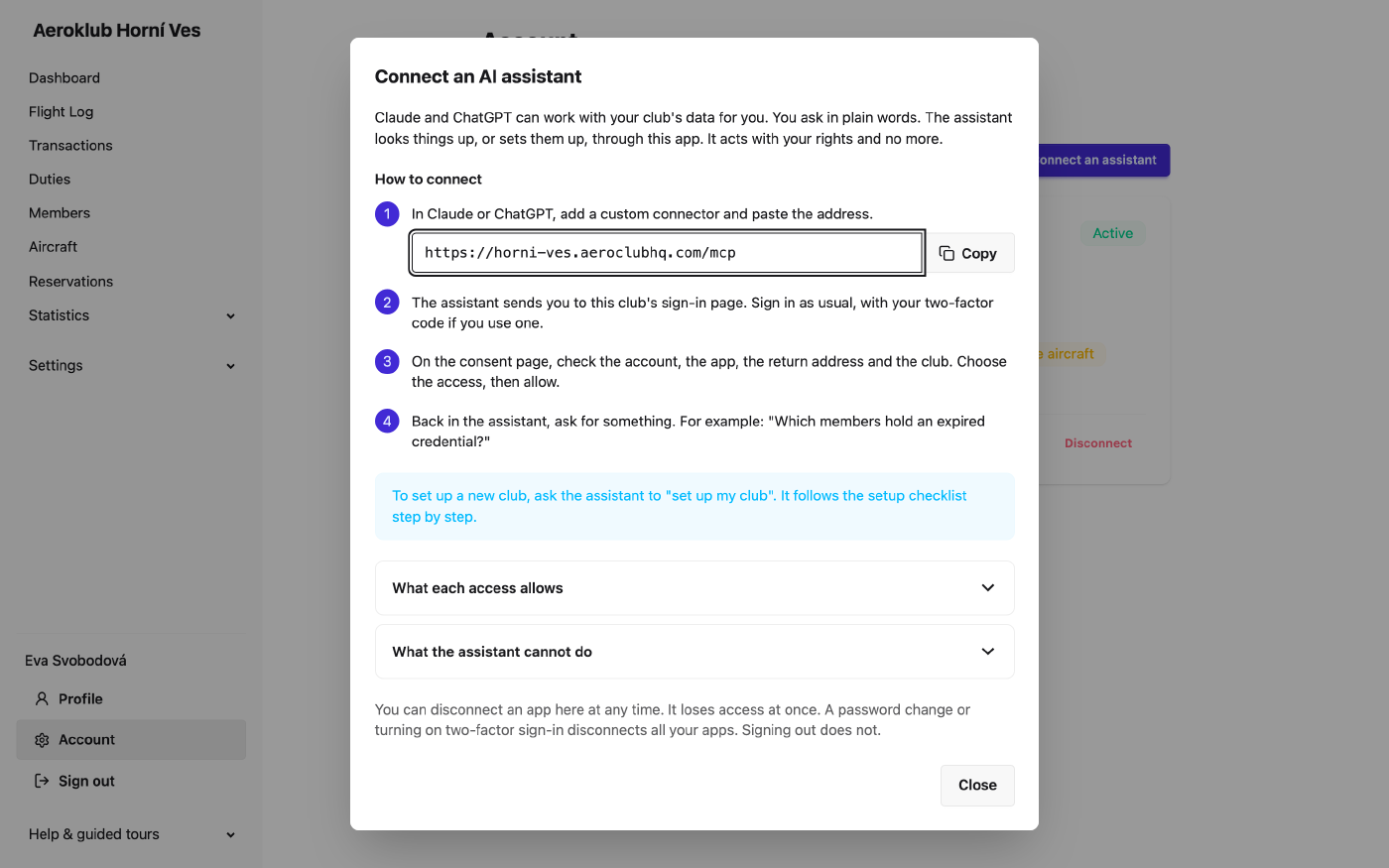
How to connect
- Open Account in the menu, then the Connected apps tab, and click Connect an assistant.
Copy the Club address for apps. It looks like
https://<your club>.<domain>/mcp. - In Claude or ChatGPT, add a custom connector and paste the address. On some plans a Claude or ChatGPT workspace administrator must allow custom connectors first.
- The assistant sends you to the club’s normal sign-in page. Sign in as usual, with your two-factor code if you use one.
- On the consent page check the account, the app, the You return to address and the club. The app names itself, so trust the two addresses, not the name. Tick the access you want and click Allow — or Deny, which stores nothing.
- Back in the assistant, ask for something.
The address works on the club’s own address only (<club>.<domain>). A club that uses only a custom
domain has no address for assistants; the guide says so.
To set up a new club, ask the assistant to “set up my club”. It walks through the setup checklist step by step: time zone, home airfield, aircraft categories and types, aircraft, memberships, members, pricing rules, roles and users, club language and notifications. It offers this to users who may change club settings.
What each access allows
The consent page has two groups. A scope never gives more than your role allows: a tool needs both the scope and the role’s right.
| Access | What the assistant can do |
|---|---|
| See club data | Read members, aircraft, flights, duties, reservations, the audit log, users and configuration. Always on. |
| See my money | Read your own balance and payments, and what your own flights and duties cost. |
| See club money | Read every member’s balance and payments and the charges of any flight. Includes See my money. Without a money access, previews list names and types but no amounts. |
| Change members | Create and update members; import members from CSV. |
| Change aircraft | Create and update aircraft; import aircraft from CSV. |
| Change club setup | Aircraft categories and types, memberships, transaction types, duty tags, flight tasks, certificates, licence types, custom fields, aircraft components, qualification rules. |
| Change prices and money rules | Pricing rules, duty types with their rates, accumulated facts; periodic payments, penalty rules and bank import rules as inactive drafts. Warning on the page: This can change what members are charged. |
| Change club settings | Club name, contact email, time zone, home airfield, warning periods, email language, the email master switch. |
| Log flights | Log a flight and fix one that is not yet approved. It enters the review queue like any manual flight. |
| Approve flights | Approve a flight, one per call, through the normal web approval. Warning: Approving posts money to member accounts. |
| Log duties | Log hours worked and fix a duty that is not yet approved. |
| Approve duties | Approve a duty, one per call. |
Every access except See club data starts off. Turn on only what you need.
What the assistant can never do
- Delete anything.
- Record, change or delete a payment or an opening balance. Approving posts only what the web approval posts.
- Edit approved flights or duties, decline or delete flights, or approve many at once. When you ask for several, it lists them and asks.
- Approve a flight that charges no member. The web app asks you to confirm those.
- Start a re-bill or a recalculation.
- Change prices for today or the past. A new pricing rule, a new version and a duty rate start tomorrow or later, on the day you choose. It never edits or deletes an existing price version.
- Switch on periodic payments, penalty rules or bank import rules. It prepares them as drafts, and you switch them on in the web app.
- Change roles, invitations, user status, two-factor reset or the bank connection. These stay in the web app behind confirm it’s you.
- Change a value that approved flights are priced on (for example a birth date or the aircraft type) while such flights depend on it. It names the web page that does it.
- Reach another club.
The consent page says it too: It can never delete data or record a payment.
Connected apps
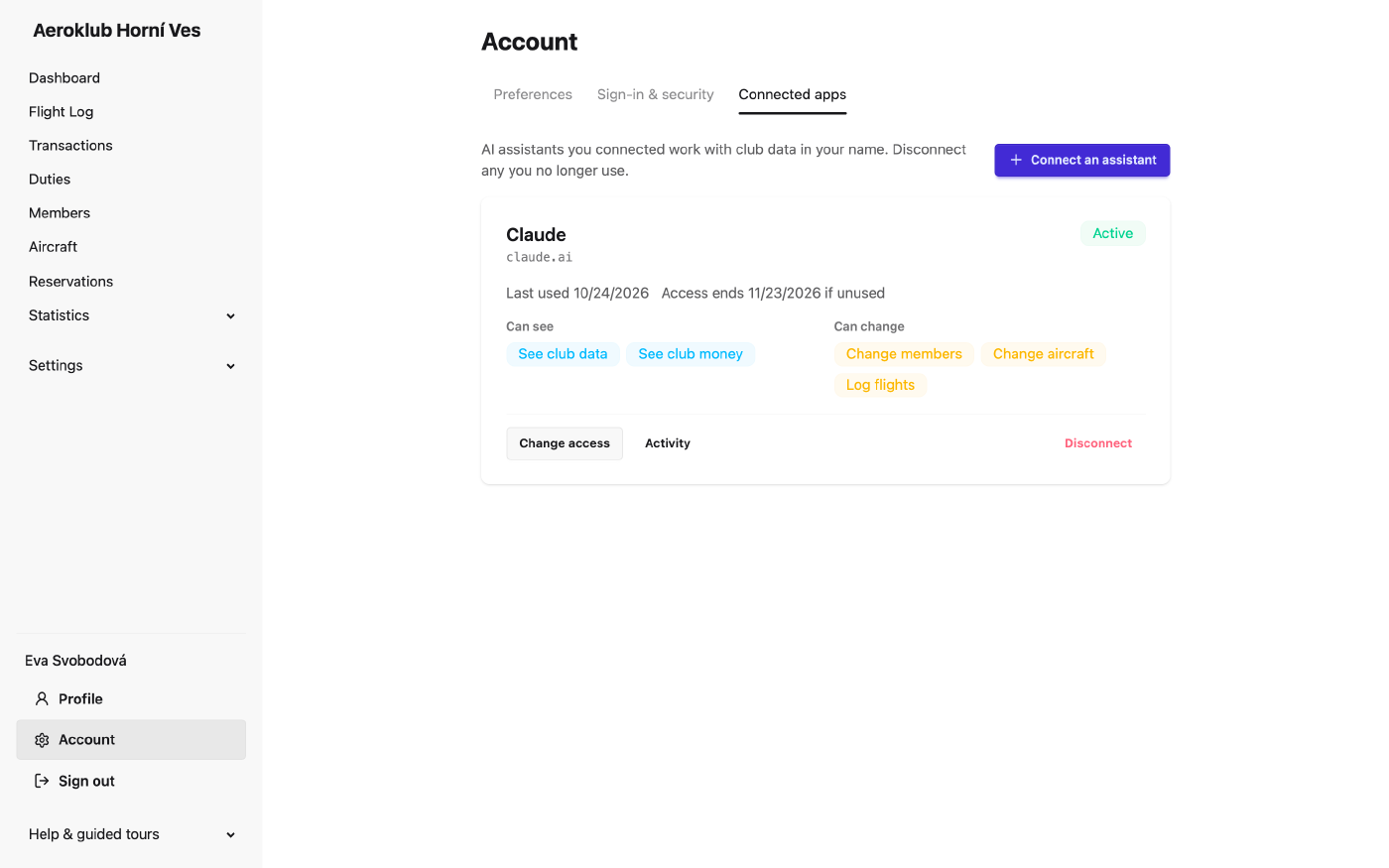
Account → Connected apps lists every app you connected, one card each:
- the app name and address, whether it is Active or Expired, when it was Connected and Last used, and Access ends … if unused;
- Can see and Can change — what you allowed.
Each card has three actions:
- Change access — untick what the app no longer needs. It applies on the app’s next request and is audited. To give an app more, connect it again and tick the access on the consent page.
- Activity — opens the Audit Log filtered to your changes through that app. Shown to users who may read the audit log.
- Disconnect — asks first, then the app loses access at once.
Security
- The app signs in on the club’s own sign-in page. It never sees your password.
- Access renews silently. After 30 days without use the app asks you to sign in again.
- These events disconnect all your apps at once: a password change, a password reset, turning on two-factor sign-in, a two-factor reset by an administrator, and deactivating the user. Signing out of the web app does not.
- A grant works for one club. It is refused on another club’s address.
- Only known AI clients may start a connection (Claude and ChatGPT by default).
- Guessing limits apply to the sign-in page as for any sign-in.
If something goes wrong
| What you see | Why | What to do |
|---|---|---|
| Your account cannot connect an assistant. | You are a superadmin or only use the member portal. | Use an account with a club role. |
| Assistants cannot connect to this club. | The club has no address for assistants. | Ask the club’s operator. |
| The assistant says it may not do something | Your role lacks the right, or the connection lacks the access. | Check your role, or connect again with more access. |
An error with ref: … | A fault on the server. | Send the reference to the operator. |
Related
- Your account — the Account area and its tabs.
- Roles — the rights the assistant inherits.
- Audit Log — every change the assistant makes, marked via.
- Club Settings — the setup checklist the assistant walks through.