Bank Integration
Connect the club's Česká spořitelna account so members' bank transfers are credited to their balance automatically.
What it is
The bank integration connects the club’s own account at Česká spořitelna (ČSAS, Erste group). AeroclubHQ reads the account’s movements three times a day. An incoming payment it can match to a member is credited to that member’s balance, so nobody has to type bank transfers in by hand.
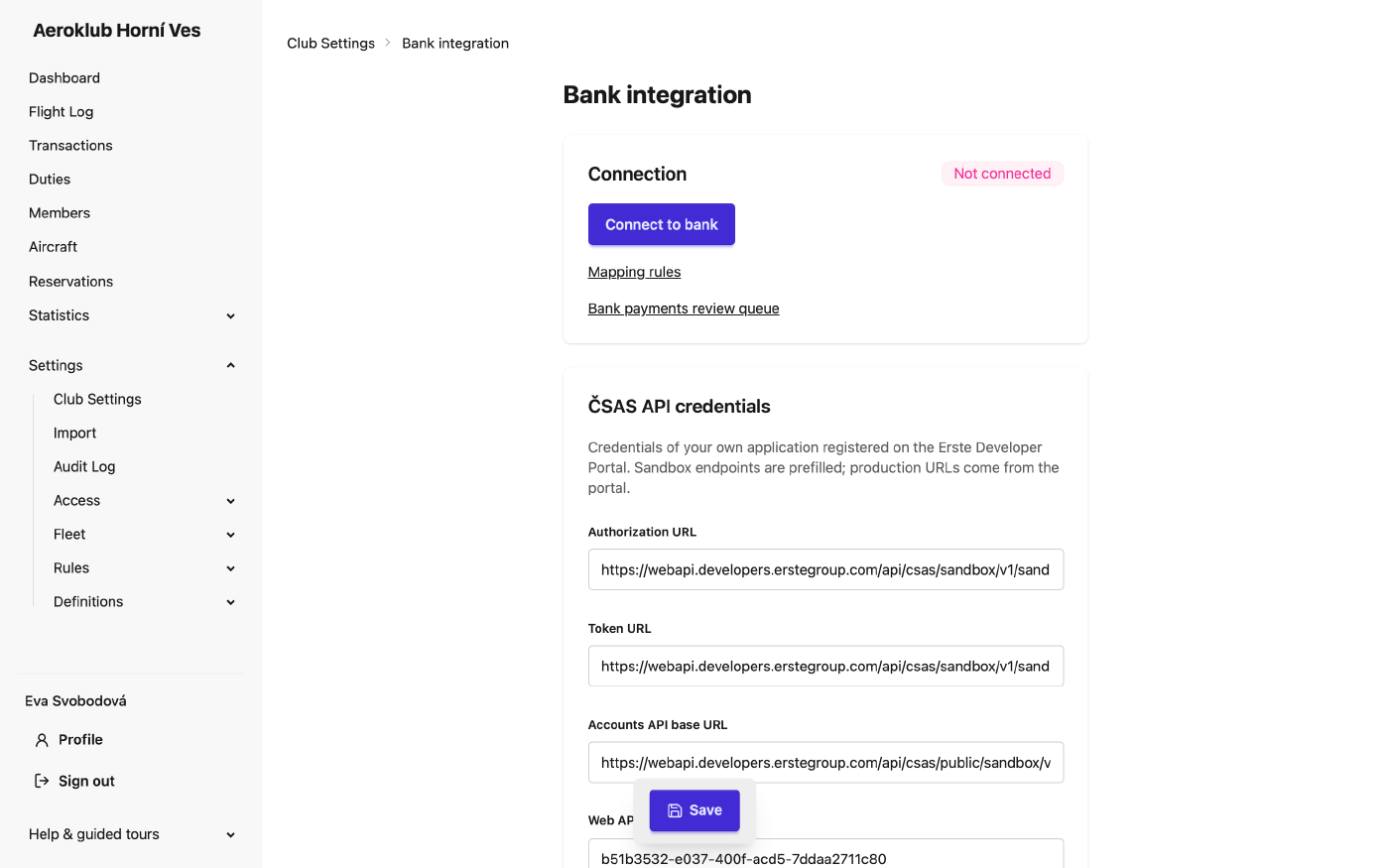
Open it from Club Settings → Integrations → Configure ČSAS bank transaction import. You need the permission Manage club settings.
The app stores only movements that concern members. A movement that no mapping rule claims and no member matches is not stored at all, so the club’s other banking (salaries, suppliers) stays out of the app.
Before you start
The club needs its own application on the Erste Developer Portal. From the portal you get a Web API key, a Client ID and a Client secret, and the production URLs. In the portal, register the Redirect URI shown on this page, exactly as shown.
How to use it
- Enter the credentials. In ČSAS API credentials, fill in the Authorization URL, Token URL, Accounts API base URL, Web API key, Client ID and Client secret. Sandbox URLs are prefilled; replace them with the production URLs from the portal. Click Save. The client secret is never shown again; leave the field empty to keep the stored one.
- Connect. In Connection, click Connect to bank. You sign in to George, give consent, and return to this page.
- Pick the account. Choose the Bank account and click Use this account.
- Test. Test connection checks the credentials and the authorization, and says how many accounts are visible.
- Set up posting. In Posting, choose the Default transaction type and the Member matching methods, then click Save.
- Switch on Automatic sync. The account is then read three times a day.
Fetch now reads new movements at once. It continues from the last sync and re-reads the last three days, so nothing is counted twice.
The page also links to the Mapping rules and, if you have Manage transactions, to the Bank payments review queue.
Default transaction type
An incoming payment that matches a member but no mapping rule is credited under the Default transaction type (the built-in Bank payment type unless you choose another). Use mapping rules to book payments under other types, to charge members for outgoing payments, or to ignore movements.
Member matching
Member matching decides how a payment is tied to a member. The enabled methods are tried in order, and the first that finds exactly one member wins. Both are on by default.
- Variable symbol equals the member number — the payment’s variable symbol is the member’s number.
- Member name appears in the payment message or note, or the member’s full name is the sender of
an incoming payment:
- The member’s surname in the payment message or the payer’s note identifies them (case and accents do not matter). When several members share the surname, the given name must appear too; it may also come from the sender’s name.
- When the message and note name no member at all, the sender’s name of an incoming payment identifies the member whose given name and surname it contains. A surname alone is not enough, and the sender of an outgoing payment never identifies anyone.
- Only active members are matched by name. Czech name forms must match exactly (“Novák”, not “Nováka”).
The payer’s bank account number is never used to identify a member: one account often pays for several people (a parent for children, a transfer service for everybody).
A payment that a mapping rule claims but no member matches waits in the review queue, where you assign the member by hand. See Bank Payments.
Fetching an older period
To read a period before the last sync (for example after adding a mapping rule), pick a date in Fetch from and click Fetch older period. Payments already imported are recognised and not duplicated. The date cannot be in the future.
To see every movement of a date range, including those the rules skip, and import rows by hand, use Browse bank account. See Bank Payments.
Authorization and expiry
The status badge in Connection reads Connected, Not connected or Re-authorization required. The bank’s consent lasts about 180 days; Authorization valid until shows when it ends.
- Ten days before it ends, a warning email goes to the club’s Contact email (set it on Club Settings, or the warning is not sent), and the dashboard shows a warning.
- To renew the consent, click Re-authorize and sign in to George again.
- If it lapses, syncing stops and the status reads Re-authorization required until you re-authorize.
Disconnect removes the stored authorization and stops syncing. The credentials stay saved.
Changes to this page are recorded in the Audit Log. The client secret is recorded only as set or not set, never its value.
Related
- Bank Payments — the review queue, browsing the account and payment detail.
- Bank Rules — mapping rules that decide how each movement is booked.
- Notifications — the Bank payments to review email for staff.
- Transaction Types — the types payments are booked under.