Notifications
Emails the club sends — personal emails to members, club-operations alerts to staff, and messages you write to members.
What it is
AeroclubHQ sends three kinds of email:
- Personal emails go to a member about their own flights, licences and balance. They are on by default, and each member can switch them off.
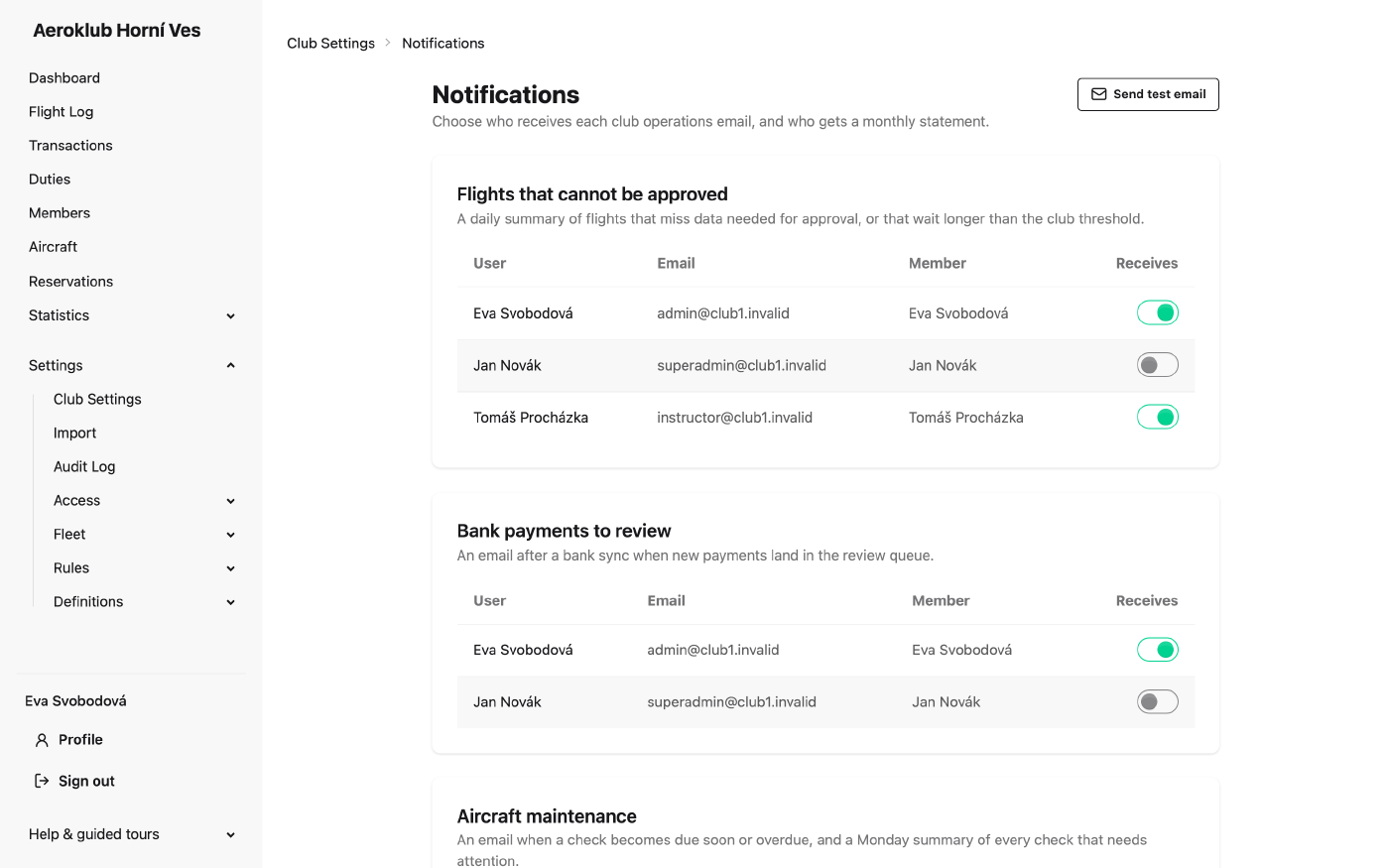
- Club-operations emails go to staff about work waiting for the club. Nobody receives them until you choose recipients on this page.
- Messages to members are emails you write yourself, from the members list.
Two settings on Club Settings apply to all of them: the Email notifications master switch and the Email language. While the master switch is off, no email of any kind is sent.
This page (Club Settings → Notifications) needs the permission Manage club settings.
How to use it
- Choose recipients — each club-operations email has its own card listing the users who may receive it. Flip the switch in the Receives column to add or remove a person. A warning shows when a card has no recipient, or when nobody holds the permission it needs.
- Set the balance statement policy — choose which members get a monthly statement, then click Save. See Monthly balance statement.
- Send test email — sends a test message to your own account’s email address, to check that the club can send mail.
Club-operations emails
Each email is offered only to users whose role grants the permission that lets them act on it. A user who loses that permission stops receiving it.
| Who can receive it | When it is sent | |
|---|---|---|
| Flights that cannot be approved | Approve any flight | Daily: flights that miss data needed for approval, or that wait longer than the Flight review threshold (days) |
| Bank payments to review | Manage transactions | After a bank sync, when new payments land in the review queue |
| Aircraft maintenance | Record maintenance / inspections | When a check becomes due soon or overdue, plus a Monday summary of every check that needs attention |
Club-operations emails go to the user’s login email.
Personal emails
| When it is sent | |
|---|---|
| Flights awaiting your approval | Daily, on days when a flight the member flew or pays for waits for their approval. Only members with a login receive it. |
| Qualification alerts | Once per new issue: a licence enters the expiry window, a licence expires, or a qualification rule starts to fail. |
| Monthly balance statement | On the 5th of each month: opening balance, last month’s payments and closing balance. |
Personal emails go to the email address on the member record. A member without an email address receives nothing.
A member’s notification settings
Each member has a Notifications page, opened from Notification settings in the round button on their member page. The member can change it for themselves, and so can anyone with Manage members.
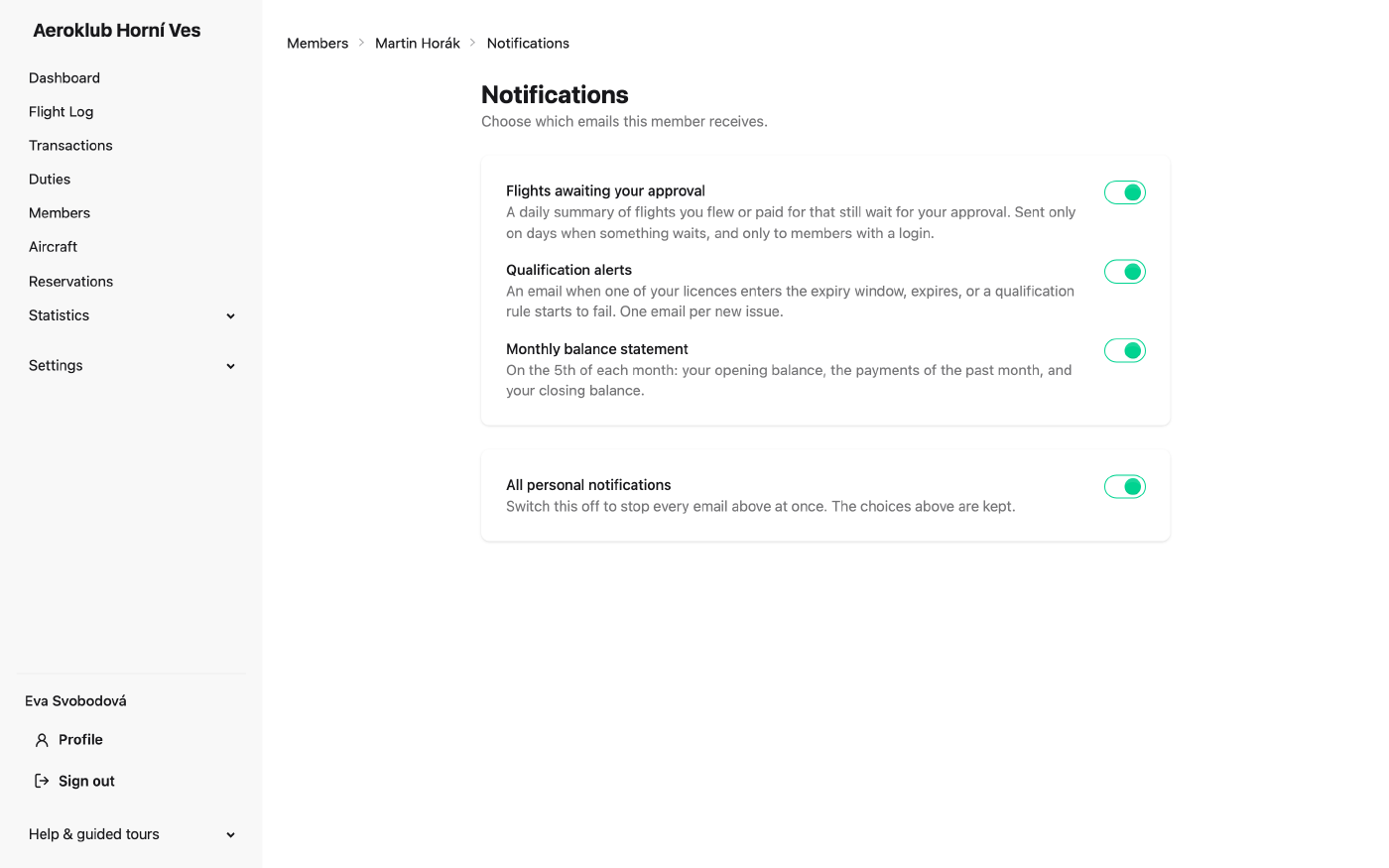
- One switch per personal email.
- All personal notifications — stops every personal email at once. The individual choices are kept, so switching it back on restores them.
The unsubscribe link
Every personal email has two links at the bottom: Stop these emails and Stop all emails. They work without signing in. The link opens a confirmation page, and nothing changes until the member presses the button there. The member (or the club) can switch the emails back on later on the Notifications page.
Monthly balance statement
The Monthly balance statement card sets, per membership type, which members get a statement:
- Every month — a statement every month, even a quiet one.
- On activity or debt — only when the month had a payment, or the member owes money at the end of it.
- Never — no statement.
The No membership row covers members who hold no membership type. A member who switched the statement off does not get it, whatever this table says.
Messages to members
You can email any group of members from the Members list. This needs the permission Send messages to members, which is separate from Manage members.
- Tick members, or use Select all … matching to take everyone the filters show, and click Send message. The Send message action in the round button at the bottom right sends to everyone the current filters match, without ticking.
- Write a Subject (up to 150 characters) and a Message (plain text, up to 5,000 characters). The dialog says how many members will receive it, and how many are skipped because they are inactive or have no email address.
- Click Review, check the text, the recipient count and the filters used, then click Send.
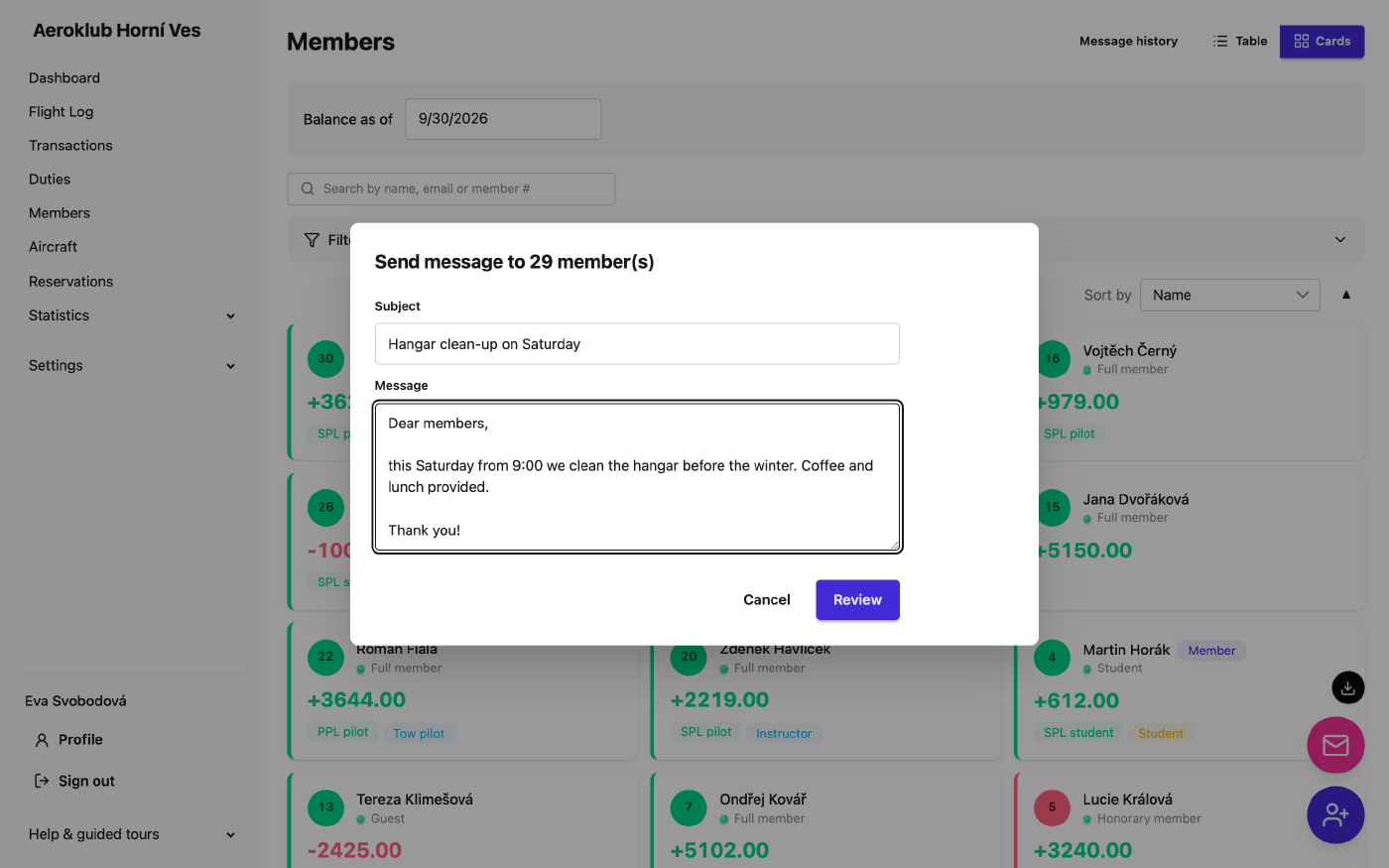
The message is sent as the club, and replies go to you. It reaches members even if they switched off their personal emails, but never inactive members. One message can go to at most 500 members.
While the Email notifications master switch is off, Send message is disabled.
Message history
Message history at the top of the members list (/members/messages) lists every message sent:
date, subject, sender, number of recipients, how many were accepted and how many failed, and a
status: Queued, Sending, Accepted or Partially failed. Sending runs in the
background, so a large message may take a few minutes.
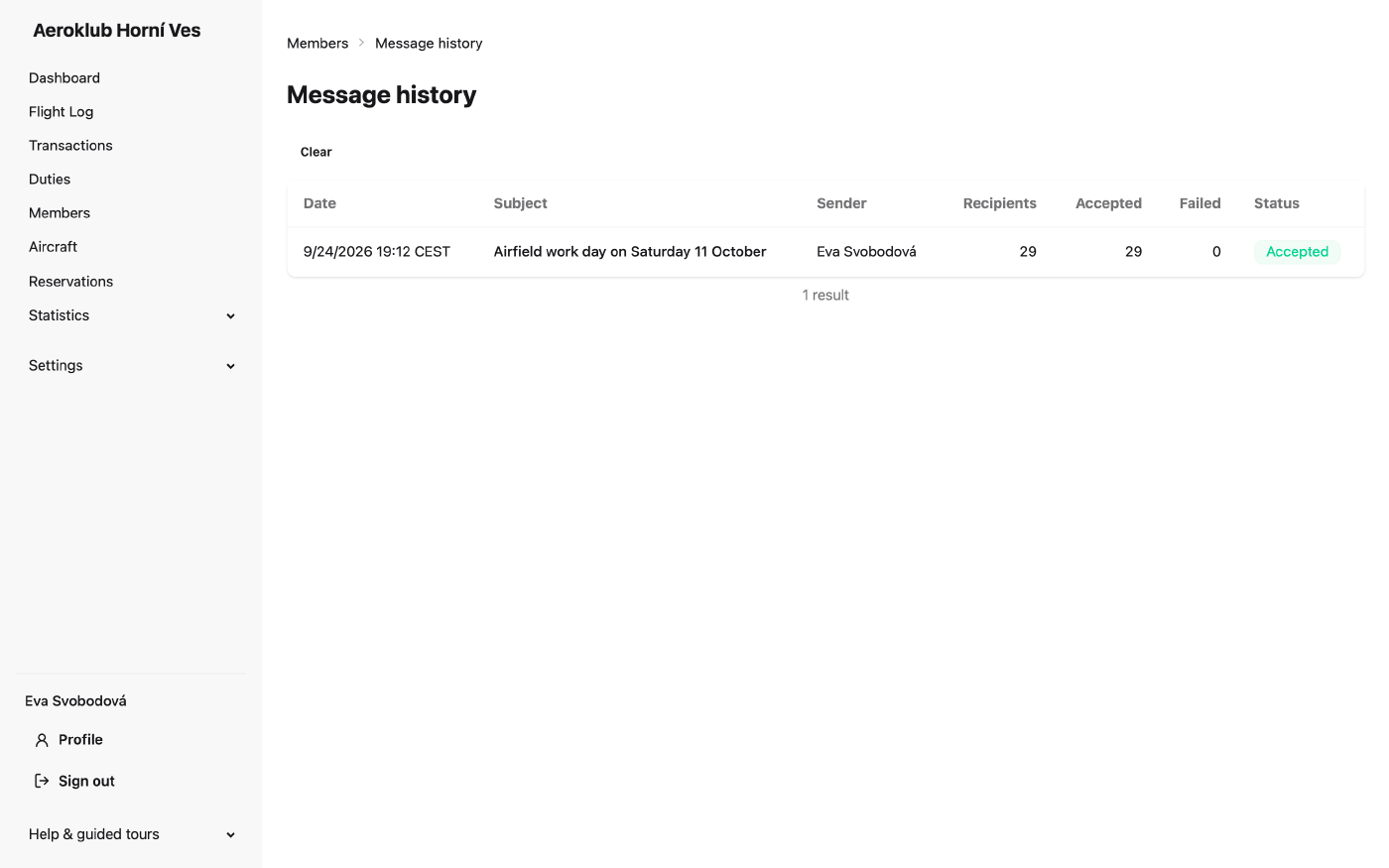
Open a message to read its text and see each recipient with their own status and, for a failure, the reason.
Accepted means the mail server took the email. It does not prove the email reached the inbox.
When an email is not sent
- The Email notifications master switch is off.
- There is nothing to report — empty digests are never sent.
- The recipient switched that email off, or has no email address.
- The same event was already reported — nothing is emailed twice.
Related
- Club Settings — the master switch, email language and review threshold.
- Members — where messages to members are sent from.
- Roles — the permissions that decide who can receive club-operations emails.
- Your account — what members see about their own emails.
- Audit Log — every change to these settings is recorded.